

搜索到
230
篇与
的结果
-
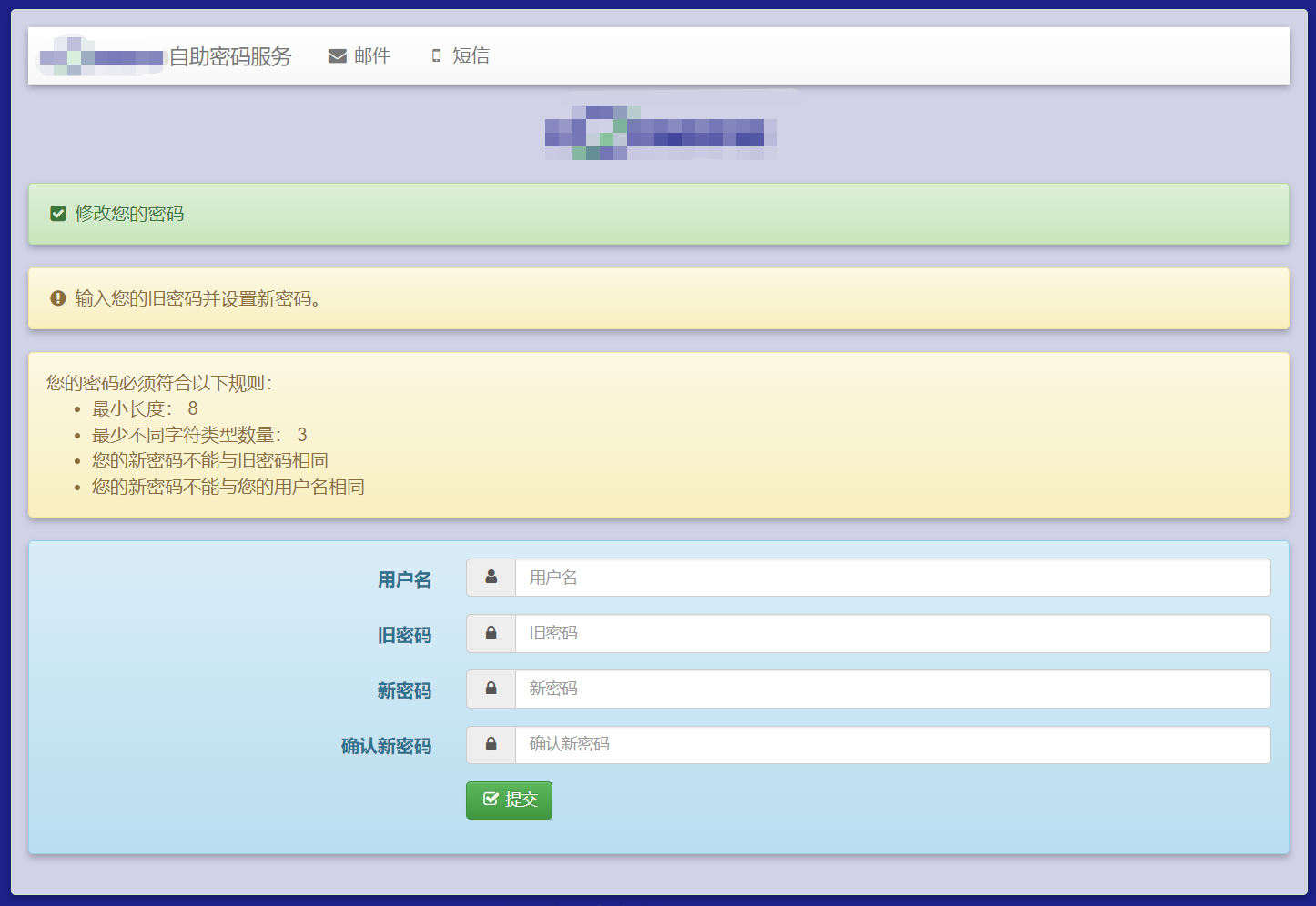
 Self Service Password域账号自助服务台 已更新docker版,1分钟部署完成https://90apt.com/4604{lamp/}项目官网:https://www.ltb-project.org/documentation/self-service-password.htmlgithub:https://github.com/ltb-project/self-service-password文档:https://self-service-password.readthedocs.io/en/latest/本文采用oracle linux8系统安装安装:1、安装php-smartyhttps://pkgs.org/download/php-SmartyDownload latest remi-release rpm from http://rpms.remirepo.net/enterprise/8/remi/x86_64/ Install remi-release rpm: rpm -Uvh remi-release*rpm Install php-Smarty rpm package: dnf --enablerepo=remi install php-Smarty2、安装self-service-passwordConfigure the yum repository: /etc/yum.repos.d/ltb-project.repo [ltb-project-noarch] name=LTB project packages (noarch) baseurl=https://ltb-project.org/rpm/$releasever/noarch enabled=1 gpgcheck=1 gpgkey=file:///etc/pki/rpm-gpg/RPM-GPG-KEY-LTB-project Then update: yum update Import repository key: rpm --import https://ltb-project.org/documentation/_static/RPM-GPG-KEY-LTB-project You are now ready to install: yum install self-service-password3、安装openldapyum install -y openldap4、AD域导出证书Self Service Password必须以LDAPS方式连接域控,因此需要加载证书添加角色和功能-AD证书服务证书颁发机构web注册配置证书服务证书颁发机构开启AD域证书服务刷新策略导出证书个人证书导出转换证书openssl x509 -inform der -in ad01.cer -out ad01.pem cat ad01.pem >> /etc/openldap/certs/ldaps.pemopenldap配置文件/etc/openldap/ldap.conf TLS_CACERT /etc/openldap/certs/ldaps.pem TLS_REQCERT allow5、Self Service Password配置文件需生成独立配置文件cd /usr/share/self-service-password/conf/ cp config.inc.php config.inc.local.php我的配置文件config.inc.local.php,主要放上改动的部分和注释<?php $debug = false; //debug模式关闭 # LDAP $ldap_url = "ldaps://ad1.90apt.com:636"; //AD服务器 $ldap_starttls = false; $ldap_binddn = "CN=wangwangjie,CN=Users,DC=90apt,DC=com"; //使用的域控管理员用户 $ldap_bindpw = "passwd@123"; //上面域控管理员密码 $ldap_base = "OU=王工有限公司,OU=用户OU,DC=90apt,DC=com"; //应用的OU范围 $ldap_login_attribute = "sAMAccountName"; //登陆属性 $ldap_fullname_attribute = "cn"; //全名属性 $ldap_filter = "(&(objectClass=user)(sAMAccountName={login})(!(userAccountControl:1.2.840.113556.1.4.803:=2)))"; //AD需要这么配置 $ldap_use_exop_passwd = false; $ldap_use_ppolicy_control = false; $ad_mode = true; //启用AD模式 $ad_options=[]; # Force account unlock when password is changed $ad_options['force_unlock'] = true; //更改密码时强制解锁账户 # Force user change password at next login $ad_options['force_pwd_change'] = false; # Allow user with expired password to change password $ad_options['change_expired_password'] = true; //允许过期的用户修改密码 # Local password policy # This is applied before directory password policy # Minimal length $pwd_min_length = 8; //最短密码位数 # Maximal length $pwd_max_length = 0; # Minimal lower characters $pwd_min_lower = 0; # Minimal upper characters $pwd_min_upper = 0; # Minimal digit characters $pwd_min_digit = 0; # Minimal special characters $pwd_min_special = 0; # Definition of special characters $pwd_special_chars = "^a-zA-Z0-9"; //特殊字符 # Forbidden characters #$pwd_forbidden_chars = "@%"; # Don't reuse the same password as currently $pwd_no_reuse = true; //不使用重复密码 # Check that password is different than login $pwd_diff_login = true; //密码不能与账号相同 # Check new passwords differs from old one - minimum characters count $pwd_diff_last_min_chars = 0; # Forbidden words which must not appear in the password $pwd_forbidden_words = array(); # Forbidden ldap fields # Respective values of the user's entry must not appear in the password # example: $pwd_forbidden_ldap_fields = array('cn', 'givenName', 'sn', 'mail'); $pwd_forbidden_ldap_fields = array(); # Complexity: number of different class of character required $pwd_complexity = 3; //需要不同类别的字符 # use pwnedpasswords api v2 to securely check if the password has been on a leak $use_pwnedpasswords = false; # Show policy constraints message: # always # never # onerror $pwd_show_policy = "always"; //显示约束信息 # Position of password policy constraints message: # above - the form # below - the form $pwd_show_policy_pos = "above"; //在表格上显示 # disallow use of the only special character as defined in `$pwd_special_chars` at the beginning and end $pwd_no_special_at_ends = false; # Who changes the password? # Also applicable for question/answer save # user: the user itself # manager: the above binddn $who_change_password = "manager"; //谁的权限修改 ## Token # Use tokens? # true (default) # false $use_tokens = true; # Crypt tokens? # true (default) # false $crypt_tokens = true; # Token lifetime in seconds $token_lifetime = "3600"; ## Mail # LDAP mail attribute $mail_attributes = array( "userPrincipalName","mail", "gosaMailAlternateAddress", "proxyAddresses" ); //邮箱形式 # Get mail address directly from LDAP (only first mail entry) # and hide mail input field # default = false $mail_address_use_ldap = true; //直接从域控获取邮箱 # Who the email should come from $mail_from = "wangwangjie@90apt.com"; $mail_from_name = "域账号自助改密解锁服务"; $mail_signature = "本邮件为通过密码自助修改LDAP账号密码,无需回复,如有重置密码遇到问题可以联系运维同学"; # Notify users anytime their password is changed $notify_on_change = true; # PHPMailer configuration (see https://github.com/PHPMailer/PHPMailer) $mail_sendmailpath = '/usr/sbin/sendmail'; $mail_protocol = 'smtp'; $mail_smtp_debug = 0; $mail_debug_format = 'html'; $mail_smtp_host = 'smtp.90apt.com'; $mail_smtp_auth = true; $mail_smtp_user = 'wangwangjie@90apt.com'; $mail_smtp_pass = 'passwd@123'; $mail_smtp_port = 25; $mail_smtp_timeout = 30; $mail_smtp_keepalive = false; $mail_smtp_secure = 'tls'; $mail_smtp_autotls = true; $mail_smtp_options = array(); $mail_contenttype = 'text/plain'; $mail_wordwrap = 0; $mail_charset = 'utf-8'; $mail_priority = 3; ## SMS # Use sms $use_sms = true; # SMS method (mail, api) $sms_method = "api"; $sms_api_lib = "lib/smsapi.inc.php"; //自编写短信api,从短信平台的帮助文档里找 # GSM number attribute $sms_attributes = array( "mobile", "pager", "ipPhone", "homephone" ); # Partially hide number $sms_partially_hide_number = true; # Send SMS mail to address. {sms_attribute} will be replaced by real sms number $smsmailto = "{sms_attribute}@service.provider.com"; # Subject when sending email to SMTP to SMS provider $smsmail_subject = "Provider code"; # Message $sms_message = "{smsresetmessage} {smstoken}"; # Remove non digit characters from GSM number $sms_sanitize_number = false; # Truncate GSM number $sms_truncate_number = false; $sms_truncate_number_length = 10; # SMS token length $sms_token_length = 6; # Max attempts allowed for SMS token $max_attempts = 5; # Encryption, decryption keyphrase, required if $use_tokens = true and $crypt_tokens = true, or $use_sms, or $crypt_answer # Please change it to anything long, random and complicated, you do not have to remember it # Changing it will also invalidate all previous tokens and SMS codes $keyphrase = "90apt"; //关键词 # Display menu on top $show_menu = true; //显示菜单 # Logo $logo = "images/logo.png"; //logo # Background image $background_image = "images/90apt.png"; //壁纸 参考链接:https://blog.csdn.net/qq_33574974/article/details/128440776https://blog.csdn.net/qq_43536701/article/details/112290651https://blog.csdn.net/sunny05296/article/details/87634602https://blog.csdn.net/jnloverll/article/details/120333488https://www.cnblogs.com/cf-cf/p/12027495.htmlhttps://hebye.com/docs/ldap/ldap-1d9e6e2dts5avhttps://zhuanlan.zhihu.com/p/445700057?utm_id=0https://cloud.tencent.com/developer/article/1937696https://blog.csdn.net/weixin_44728369/article/details/117558938https://blog.csdn.net/weixin_34163313/article/details/115243146https://blog.csdn.net/hc1017/article/details/81293323?locationNum=1&fps=1https://www.cnblogs.com/skymyyang/p/13653294.htmlhttps://blog.csdn.net/qq461391728/article/details/115867721?ops_request_misc=%257B%2522request%255Fid%2522%253A%2522162848744116780265427748%2522%252C%2522scm%2522%253A%252220140713.130102334..%2522%257D&request_id=162848744116780265427748&biz_id=0&utm_medium=distribute.pc_search_result.none-task-blog-2~all~sobaiduend~default-1-115867721.pc_search_result_control_group&utm_term=self+service+password+%E5%9F%9F%E8%B4%A6%E5%8F%B7&spm=1018.2226.3001.4187https://blog.csdn.net/yanchuandong/article/details/119598665https://blog.51cto.com/u_10630242/2538982
 -
-
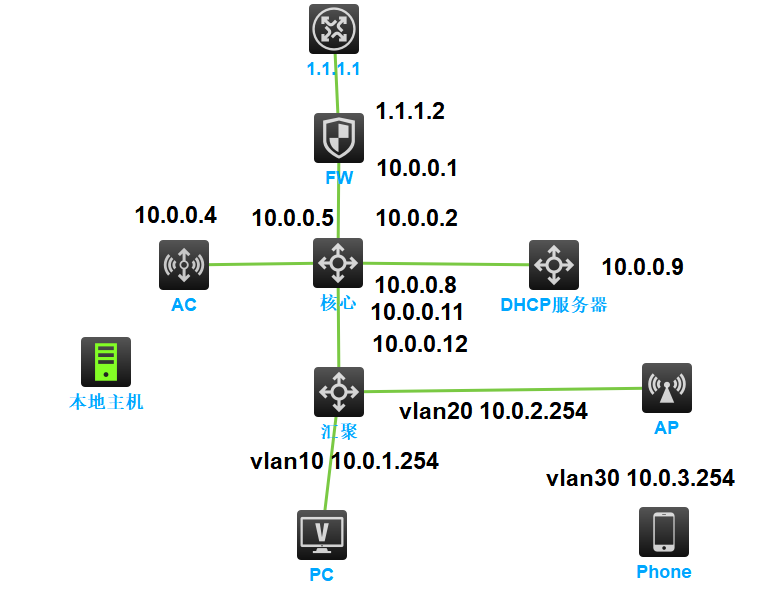
2023年华三H3C HCL新版模拟器防火墙、AC、AP、Phone、Host新功能使用 当前H3C最新版模拟器加入了防火墙、AC、AP、Phone等新设备,本文重点介绍新设备的使用整体规划 采用三层网络结构,核心、汇聚、防火墙、AC、DHCP服务器均采用三层链接,AP采用三层上线,管理业务分离功能实现 1、ospf三层互联,为简化网络,不配置lookback接口2、配置DHCP服务器,配置DHCP中继,为多个VLAN提供服务3、外网通过防火墙NAT访问最终目标 实现Phone通过AP联网并自动获取IP,能够访问外网1.1.1.1配置步骤 1、配置核心交换机 配置三层接口interface GigabitEthernet1/0/1 port link-mode route combo enable fiber ip address 10.0.0.2 255.255.255.252 # interface GigabitEthernet1/0/2 port link-mode route combo enable fiber ip address 10.0.0.9 255.255.255.252 # interface GigabitEthernet1/0/3 port link-mode route combo enable fiber ip address 10.0.0.6 255.255.255.252 # interface GigabitEthernet1/0/4 port link-mode route combo enable fiber ip address 10.0.0.13 255.255.255.252配置ospf协议 ospf 1 area 0.0.0.0 network 10.0.0.0 0.0.0.3 network 10.0.0.4 0.0.0.3 network 10.0.0.8 0.0.0.3 network 10.0.0.12 0.0.0.32、配置DHCP服务器 使用路由器模拟,配置接口interface GigabitEthernet1/0/2 port link-mode route combo enable fiber ip address 10.0.0.10 255.255.255.252配置ospfospf 1 area 0.0.0.0 network 10.0.0.8 0.0.0.3配置dhcp池 dhcp enable dhcp server ip-pool vlan10 gateway-list 10.0.1.254 network 10.0.1.0 mask 255.255.255.0 dns-list 10.0.0.1 # dhcp server ip-pool vlan20 gateway-list 10.0.2.254 network 10.0.2.0 mask 255.255.255.0 dns-list 10.0.0.1 # dhcp server ip-pool vlan30 gateway-list 10.0.3.254 network 10.0.3.0 mask 255.255.255.0 dns-list 10.0.0.13、配置汇聚交换机 配置VLANIF与三层接口interface Vlan-interface10 ip address 10.0.1.254 255.255.255.0 dhcp select relay dhcp relay server-address 10.0.0.10 # interface Vlan-interface20 ip address 10.0.2.254 255.255.255.0 dhcp select relay dhcp relay server-address 10.0.0.10 # interface Vlan-interface30 ip address 10.0.3.254 255.255.255.0 dhcp select relay dhcp relay server-address 10.0.0.10 # interface GigabitEthernet1/0/4 port link-mode route combo enable fiber ip address 10.0.0.14 255.255.255.252配置OSPF ospf 1 area 0.0.0.0 network 10.0.0.12 0.0.0.3 network 10.0.1.0 0.0.0.255 network 10.0.2.0 0.0.0.255 network 10.0.3.0 0.0.0.255开启DHCP中继服务 dhcp enable4、调试pc 配置汇聚交换机对应接口为vlan10interface GigabitEthernet1/0/6 port link-mode bridge port access vlan 10 combo enable fiberPC配置自动获取,成功获取IP5、防火墙 将 本地主机 vbox网卡接口 与 防火墙相连,登陆防火墙,为接口配置IP地址。我的vbox网卡地址为192.168.56.254为防火墙配置192.168.56.2interface GigabitEthernet1/0/0 port link-mode route combo enable copper ip address 192.168.56.2 255.255.255.0配置acl规则,允许此接口进行web登录acl advanced 3000 rule 0 permit ip为接口引入规则security-zone name Management import interface GigabitEthernet1/0/0 # zone-pair security source Local destination Management packet-filter 3000 # zone-pair security source Management destination Local packet-filter 3000登录防火墙进行配置 admin admin配置内网接口配置外网接口配置防火墙静态路由,从防火墙返回内网的路由配置防火墙安全策略,所有区域互通配置NAT转换配置核心默认路由,声明ospf默认路由ip route-static 0.0.0.0 0 10.0.0.1 ospf 1 default-route-advertise配置外网设备1.1.1.1,配置IPinterface GigabitEthernet0/2 port link-mode route combo enable copper ip address 1.1.1.1 255.255.255.0测试pc与防火墙内外网地址互通,实现通讯<H3C>ping 1.1.1.2 Ping 1.1.1.2 (1.1.1.2): 56 data bytes, press CTRL_C to break 56 bytes from 1.1.1.2: icmp_seq=0 ttl=253 time=1.000 ms注意,多外网接口通讯还需配置策略路由防火墙配置至此完成6、AC配置 断开本地主机与防火墙的连接,将本地主机连接至AC为ac配置IP并配置web登录[ac]int vlan 1 [ac-Vlan-interface1]ip add 192.168.56.3 24 [ac]ip http en [ac]local-user admin New local user added. [ac-luser-manage-admin]password simple pass@123456 [ac-luser-manage-admin]authorization-attribute user-role level-15 [ac-luser-manage-admin]service-type http [ac-luser-manage-admin]save因模拟器存在bug,将AC接口改为三层接口后所有接口失效,因此为AC和核心交换机配置trunk及vlan,若已经触发bug,需要删除AC重新添加 核心配置interface Vlan-interface100 ip address 10.0.0.6 255.255.255.252 interface GigabitEthernet1/0/3 port link-mode bridge port link-type trunk port trunk permit vlan all combo enable fiberAC配置interface Vlan-interface100 ip address 10.0.0.5 255.255.255.252 interface GigabitEthernet1/0/3 port link-mode bridge port link-type trunk port trunk permit vlan all为AC设置默认路由ip route-static 0.0.0.0 0 10.0.0.6使用pc测试,可以与AC通讯<H3C>ping 10.0.0.5 Ping 10.0.0.5 (10.0.0.5): 56 data bytes, press CTRL_C to break 56 bytes from 10.0.0.5: icmp_seq=0 ttl=253 time=2.000 ms为DHCP服务器配置option43选项,AP上线网段为VLAN20option43格式简要说明: 80 07 00 00 01 02 02 02 02 80:固定值,不用改变; 07:长度字段,其后面所跟数据的字节长度; 00 00:固定值,不用改变; 01:表示后面的IP地址的个数,此处为一个IP地址; 02 02 02 02:IP地址在线转换工具 https://tool.520101.com/wangluo/jinzhizhuanhuan/10.0.0.5 = A000005 拼接默认字段option 43 hex 80070000010A000005,位数不够补零DHCP服务器配置dhcp server ip-pool vlan20 gateway-list 10.0.2.254 network 10.0.2.0 mask 255.255.255.0 dns-list 10.0.0.1 option 43 hex 80070000010a000005汇聚为AP对应的接口配置trunk及默认pvidinterface GigabitEthernet1/0/5 port link-mode bridge port link-type trunk port trunk permit vlan all port trunk pvid vlan 20重启AP,查看获取IP情况查看IPdis int br Vlan1 UP UP 10.0.2.1登录ac,开启自动AP进行AP固化及重命名创建本地转发网络为ap创建map文件,vlan30为业务vlan自定义名字officecfg.txt,因为接口配置了pvid,所以对ap来说,管理vlan是vlan1,不需要再配置system-view vlan 30 quit interface GigabitEthernet 0/0/0 port link-type trunk port trunk permit vlan 30在AP上部署map文件在AP上部署无线网络,vlan填写业务vlan 30客户端联网测试,成功获取vlan30的ipphone ping通外网1.1.1.1,实验完成小结 华三模拟器,牛逼!
-
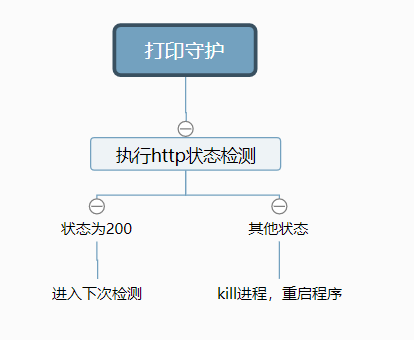
0基础上手python编程,实践进程+URL守护程序+企业微信机器人告警 全民制作人大家好,我是学习python两天半的练习生王忘杰,喜欢路由交换、linux、网络安全,开整!这是我的第三篇0基础python文章,请大家支持,谢谢~开发思路用于监控指定的URL或进程,在我的场景中,使用了httpprinter打印机插件,这个程序提供了http接口的打印功能,当程序死机时,http接口无法连接,则需要重启程序设计思路很简单,访问失败发送告警并重启程序即可。绘制开发流程图使用python语言实现import os,requests,win32api,json,psutil def process_check(processname): #检查进程是否存在,存在返回1 pl = psutil.pids() for pid in pl: if psutil.Process(pid).name() == processname: return 1 else: return 0 def url_check(url): #检查URL try: r = requests.get(url, timeout=3, verify=False) if r.status_code == 200: print("运行中,无异常") else: msg = "http打印程序状态异常,重启程序" yun_push(msg) # 关闭程序 os.system("taskkill /F /IM HttpPrinter.exe") # 启动程序 win32api.ShellExecute(0,'open','C:\\HttpPrinter_latest\\HttpPrinter.exe','','',1) except: msg = "http打印程序状态异常,重启程序" yun_push(msg) # 关闭程序 os.system("taskkill /f /im HttpPrinter.exe") # 启动程序 win32api.ShellExecute(0,'open','C:\\HttpPrinter_latest\\HttpPrinter.exe','','',1) def yun_push(content): #企业微信推送 url = 'https://qyapi.weixin.qq.com/cgi-bin/webhook/send?key=用自己的' s = json.dumps({'msgtype': 'text', 'text': {"content": content}}) print(requests.post(url, data=s).text) if __name__ == '__main__': #检查进程是否存在 #if(process_check("HttpPrinter.exe")) #检查URL url_check("http://10.0.0.1:1234/")编译成EXE程序pyinstaller -F -w .\main.py部署windows计划任务运行效果
-
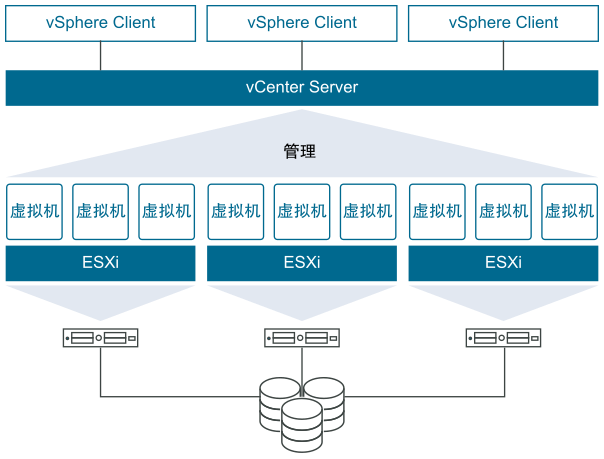
VMware企业虚拟化综合实验3 vSphere8超融合部署 介绍2022.08.30 VMware 宣布正式发布 VMware vSphere 8vSAN8.0 ESA要求25Gbps网络、VM认证的服务器和最低4块固态,ESA无需缓存盘.https://blogs.vmware.com/china/2022/09/23/vmware-vsan-esa-osa-%e5%8c%ba%e5%88%ab%e4%b8%8e%e9%80%89%e6%8b%a9/vSAN策略https://docs.vmware.com/en/VMware-vSphere/7.0/com.vmware.vsphere.vsan.doc/GUID-08911FD3-2462-4C1C-AE81-0D4DBC8F7990.html实验规划1、在vSphere7虚拟化平台上,以vSphere8为基础,部署4台全闪超融合。2、IP分配vcenter地址 172.16.10.220esxi1 172.16.10.221esxi2 172.16.10.222esxi3 172.16.10.223esxi4 172.16.10.2243、ESXi配置为 16C 64G 400G系统盘 1T闪存盘x34、因环境限制,仅配置单网卡5、因环境限制,无法部署vSAN ESA,仍然使用传统OSA模式,即每个磁盘组1块缓存盘6、因模拟环境限制,vCenter安装在外部主机上一、安装ESXi8配置虚拟机安装ESXi8配置IP地址并登录测试安装其他3台ESXi主机二、安装vCenter8通过windows发起安装vCenter配置vSAN时不需要先将ESXi接入vCenter三、配置vSAN集群按vSAN向导配置创建分布式交换机配置存储流量IP声明磁盘,将每个主机的第一块硬盘标记为缓存层,后两块标记为容量层。此时就遇到了vSphere全闪最大的问题,不滿足硬件的情况下,全闪也要标记缓存层因环境限制,将vSAN与管理都放置在同一网卡上运行此时vSAN自动配置完成四、消除vSAN告警查看vSAN当前告警SCSI控制器告警,无影响可消除因环境限制,配置到DSwitch-vSAN的网卡无法通讯,屏蔽此告警五、开启DRS和HA集群-配置-服务启动DRS启动HA六、调整vSAN存储策略默认为vSAN Default Storage Policy策略,默认策略详情可查看官网https://docs.vmware.com/en/VMware-vSphere/7.0/com.vmware.vsphere.vsan.doc/GUID-C228168F-6807-4C2A-9D74-E584CAF49A2A.html七、安装一台虚拟机上传镜像文件,注意vSAN仅能存储VMDK文件,镜像需放置在本地磁盘安装Centos7系统因环境限制,无法联网,无法安装vmtools八、在线迁移测试需为VMkernel适配器配置vMotion从222不停机迁移到224迁移完成九、HA vSAN测试ESXi4直接关机,测试Centos7是否自动拉起虚拟机自动在221重启vSAN进入故障状态,数据无丢失此时vSAN会根据策略进行空间收缩,在存活主机上重建数据,vSAN容量从8T收缩为6T十、剥离故障主机假设此主机无法修复,进行剔除剔除后故障消除十一、增加新主机为vSAN集群新增一台主机,横向扩展将主机加入DSwitch分布式交换机容量增加到8T十一、硬盘更换因环境限制无法直接模拟十二、硬盘新增(存在BUG,请勿使用)目标:移除一块硬盘,插入另一块硬盘,增加容量层空间缓存层无法直接更换容量层可以移除仅更换磁盘选择,视情况而定,若硬盘已经完全损坏,迁移磁盘可以能造成多次重试失败、主机卡顿移除完成vSAN容量下降为7T分离设备插入新硬盘后,标记磁盘为HDD与vSphere7不同,此处无法直接将硬盘添加至vSAN组临时处理措施,可以按新增服务器的方式操作。十三、vSAN集群关机、开机集群-vSAN-关闭集群预检查确认关机关机完成,作为vSAN集群,个人认为vCenter需要放在外部或者本地磁盘中,防止开机vSAN异常开机,开启ESXi,开启vCenter,全部启动完成后,选择重新启动vSAN集群耐心等待即可十四、小结整体与vSphere7变化不大,使用方式无异常,全闪模式对硬件有要求。
-
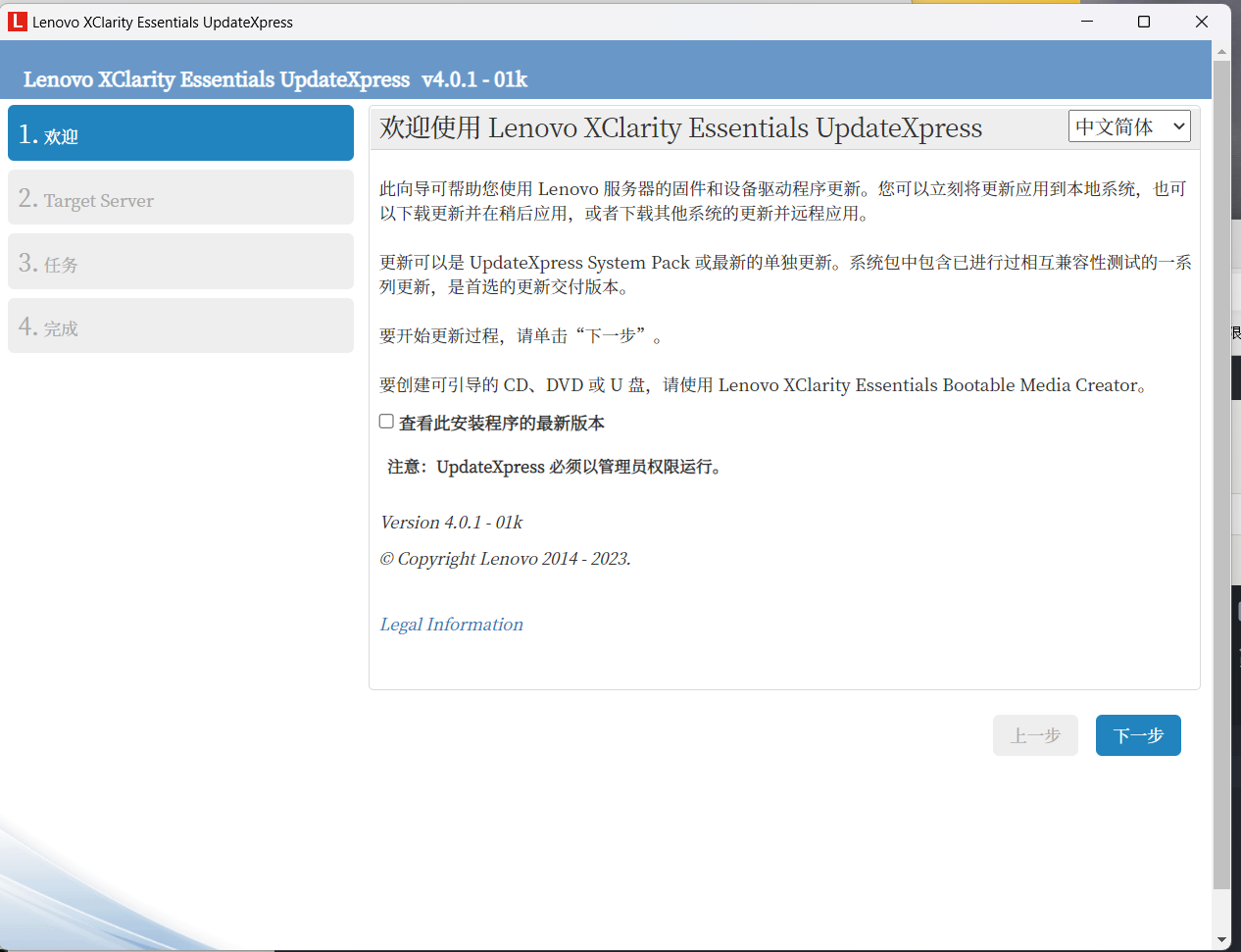
联想Lenovo XClarity Essentials远程在线升级微码 下载运行Lenovo XClarity Essentials UpdateXpress例如我的SR860 (ThinkSystem)https://datacentersupport.lenovo.com/cn/zc/products/servers/thinksystem/sr860/downloads/driver-list/component?name=Lenovo%20XClarity%20Essentials%20%28LXCE%29%20%28OneCLI升级完成,注意,需关机拔掉电源,静止5分钟后通电启动!
-
vSphere vCenter ESXi接入群晖IPSAN iSCSI 前言,若使用iSCSI功能,则要确保IPSAN与ESXi之间采用双链路及以上链接,务必保证连接稳定。IPSAN部署 打开SAN Manager创建LUN推荐Thin精简模式试验阶段可用全部允许模式我采用自定义启动器填写,登录vCenter,添加iSCSI适配器查看名称完成群晖LUN配置要在ESXi共享,需打开多重联机vCenter动态发现重新扫描存储查看iSCSI设备,确认已连接创建文件系统为其他主机添加IPSAN,添加后文件系统会自动挂载全部添加群晖SAN manager查看至此IPSAN配置完成配置IPSAN快照保护计划 虚拟化迁移测试将某虚拟机迁移至IPSAN此虚拟机已运行于IPSAN在线计算资源迁移快速迁移完成简单测速 总结 使用双10G网卡后群晖IPSAN性能远超预期,可以替代16G FCSAN
-
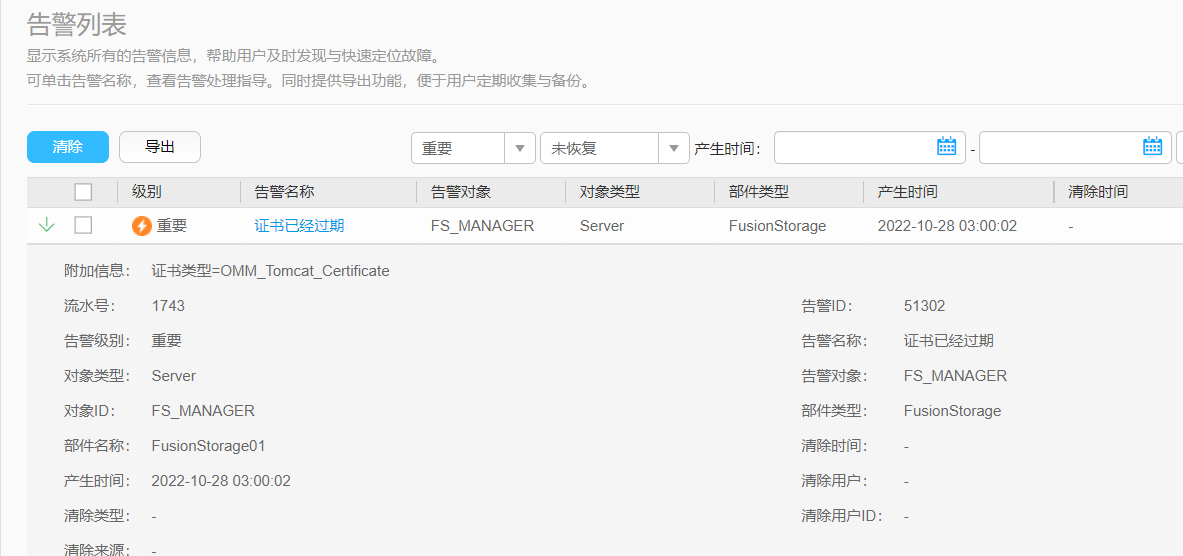
华为超融合故障处理一则 fusioncube6.5 证书已经过期 FS_MANAGER 查看系统版本:FusionStorage Block V100R006C30SPH505故障描述:重要 证书已经过期 FS_MANAGER Server FusionStorage 附加信息: 证书类型=OMM_Tomcat_Certificate 流水号: 1743 告警级别: 重要 对象类型: Server 对象ID: FS_MANAGER 部件名称: FusionStorage01 告警ID: 51302 告警名称: 证书已经过期 告警对象: FS_MANAGER 部件类型: FusionStorage官方处理说明:https://support.huawei.com/enterprise/zh/doc/EDOC1100171940?idPath=7919749%7C251364444%7C21430817%7C251366260%7C21905727证书下载:https://support.huawei.com/enterprise/zh/software/252011923-ESW2000293854处理过程:注意,需要先清除告警再替换证书,否则会造成告警无法清除,只能华为远程处理。1、查看主节点登录FSM主节点,即fusioncube的主IP,也是FCC的主IP,通过ssh登录登陆用户名dsware用户默认密码为IaaS@OS-CLOUD9!,还有个fc2用户也可以登录登陆后切换到root用户su - rootroot用户默认密码为IaaS@OS-CLOUD8!查看节点状态,active为主节点,如果不是请确认IP是否正确/opt/omm/oms/workspace/ha/module/hacom/script/get_harole.sh active2、上传证书上传至/home/dsware/3、执行一键替换脚本证书密码为Huawei@123,必须在root目录中执行[root@FCC02 ~]# sh /home/dsware/One-click_replace_cert.sh ------------------------------------------------------------------------ STEP 1 Check the environment requirements. Check Success! HA role is active. [done] Check Success! The certificate in use is the default certific[done] Check Success! New Certificate file has upload /home/dsware. [done] Node Version is V100R006C30SPH505 [done] ------------------------------------------------------------------------ STEP 2 Back up the certificate in use to the /home/dsware/ directory. Backup the CRT in use to directory /home/backup_default_certi[done] ------------------------------------------------------------------------ STEP 3 Obtaining the Password of the New Certificate Enter the protection key of the /home/dsware/tomcat_server.jks. Please Enter: Huawei@123 /home/dsware/tomcat_server.jks password check SUCCESS. [done] ------------------------------------------------------------------------ STEP 4 Execute CLI to upload the script to the specified directory. -----------------------step 4.1 save tomcat_client.jks---------------- Execute dsware_tool save tomcat_client.jks SUCCESS. [done] -----------------------step 4.2 save tomcat_server.jks---------------- Execute dsware_tool save tomcat_server.jks SUCCESS. [done] ------------------------------------------------------------------------ STEP 5 Execute CLI to update TomcatCertificate. -----------------------step 5.1 update cert ---------------- Execute dsware_tool update crt tomcat_server.jks SUCCESS. [done] ------------------------------------------------------------------------ STEP 6 Check whether the service is normal after the certificate is replaced. -----------------------Check whether dsware_tool is available.---------------- Check dswareTool FAIL 1/5 TIMES [fail] Check dswareTool FAIL 2/5 TIMES [fail] Check dswareTool FAIL 3/5 TIMES [fail] Check dswareTool SUCCESS.! [done] Congratulations. Certificate replaced successfully.4、故障码清除咨询客服得知,故障码将在一段时间后自动清除
-
红帽Linux防火墙 firewall 中文文档以及我的笔记 文档地址https://access.redhat.com/documentation/zh-CN/Red_Hat_Enterprise_Linux/7/html/Security_Guide/sec-Using_Firewalls.html禁止ping echo 1 > /proc/sys/net/ipv4/icmp_echo_ignore_all 开启ping echo 0 > /proc/sys/net/ipv4/icmp_echo_ignore_all安装firewallyum install firewalld服务相关systemctl disable firewalld systemctl enable firewalld systemctl start firewalld systemctl stop firewalld systemctl restart firewalld firewall-cmd --state查看当前防火墙规则firewall-cmd --list-all重载防火墙firewall-cmd --reload查看当前接口情况firewall-cmd --get-active-zonesIP伪装端口转发firewall-cmd --permanent --add-masquerade --zone=external firewall-cmd --add-forward-port=port=22:proto=tcp:toport=3753 --permanent --zone=external firewall-cmd --add-forward-port=port=22:proto=tcp:toaddr=192.0.2.55 --permanent --zone=external firewall-cmd --add-forward-port=port=22:proto=tcp:toport=2055:toaddr=192.0.2.55 --permanent --zone=external添加删除http限制并发规则firewall-cmd --zone=public --add-rich-rule='rule service name="http" limit value="80/s" accept' --permanent firewall-cmd --zone=public --remove-rich-rule='rule service name="http" limit value="80/s" accept' --permanent添加删除80端口限制并发规则firewall-cmd --zone=public --add-rich-rule='rule port port=80 protocol=tcp limit value="80/s" accept' --permanent firewall-cmd --zone=public --remove-rich-rule='rule port port=80 protocol=tcp limit value="80/s" accept' --permanent添加删除tcp端口firewall-cmd --permanent --add-port=80/tcp firewall-cmd --permanent --remove-port=80/tcp黑名单firewall-cmd --zone=drop --add-source 192.168.1.1 firewall-cmd --zone=drop --remove-source 192.168.1.1 firewall-cmd --zone=public --add-rich-rule='rule family="ipv4" source address="192.168.0.0/24" drop' --permanent firewall-cmd --zone=public --remove-rich-rule='rule family="ipv4" source address="192.168.1.1" drop' --permanent控制规则 rule [family="<rule family>"] [ source address="<address>" [invert="True"] ] [ destination address="<address>" [invert="True"] ] [ <element> ] [ log [prefix="<prefix text>"] [level="<log level>"] [limit value="rate/duration"] ] [ audit ] [ accept|reject|drop ] `port` 端口既可以是一个独立端口数字,又或者端口范围,例如,5060-5062。协议可以指定为 tcp 或 udp 。命令为以下形式: port port=number_or_range protocol=protocol综合应用允许指定IP的端口访问 [root@ADmanagement ~]# firewall-cmd --permanent --add-rich-rule="rule family="ipv4" source address="172.16.21.118" port protocol="tcp" port="61234" accept" success [root@ADmanagement ~]# firewall-cmd --reload success [root@ADmanagement ~]# firewall-cmd --list-all public (active) target: default icmp-block-inversion: no interfaces: ens192 sources: services: cockpit dhcpv6-client ssh ports: 10050-10051/tcp 61222/tcp 80/tcp protocols: forward: no masquerade: no forward-ports: source-ports: icmp-blocks: rich rules: rule family="ipv4" source address="172.16.21.118" port port="61234" protocol="tcp" accept 移除策略 [root@ADmanagement ~]# firewall-cmd --permanent --remove-rich-rule="rule family="ipv4" source address="172.16.21.118" port protocol="tcp" port="61234" accept" success [root@ADmanagement ~]# firewall-cmd --reload success 允许指定网段的端口访问 [root@ADmanagement ~]# firewall-cmd --permanent --add-rich-rule="rule family="ipv4" source address="172.17.0.0/16" port protocol="tcp" port="61234" accept" success [root@ADmanagement ~]# firewall-cmd --reload success 移除策略 [root@ADmanagement ~]# firewall-cmd --permanent --remove-rich-rule="rule family="ipv4" source address="172.17.0.0/16" port protocol="tcp" port="61234" accept" success [root@ADmanagement ~]# firewall-cmd --reload success 允许 accept 阻止 drop
-
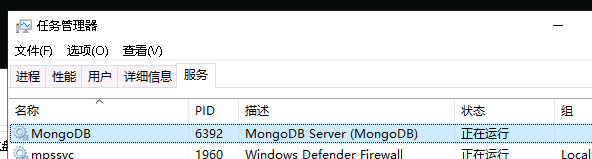
MongoDB6 安装部署、权限设置、外网访问 本文使用windows安装,但实际配置与linux相同。一、软件安装下载MongoDB,当前版本为6.0.4,默认安装带MongoDB Compasshttps://www.mongodb.com/try/download/community默认安装目录为C:\Program Files\MongoDB\Server\6.0MongoDB Shell需要手动下载,可放在MongoDB目录中使用https://www.mongodb.com/try/download/shell安装后程序自动注册为服务,自动运行,程序开启、停止、重启均通过服务控制二、配置文件mongod.cfg配置文件位于C:\Program Files\MongoDB\Server\6.0\bin\,建议使用默认配置文件配置完成后再修改配置文件。三、配置数据库、用户、远程登陆注意!必须使用MongoDB Shell配置运行mongosh.exe登陆终端查看当前数据库test> show dbs admin 168.00 KiB config 108.00 KiB local 80.00 KiB创建管理员用户,进入admin管理员库control> use admin switched to db admin admin> db.createUser({ user: "superadmin", pwd: "superadmin", roles: [{ role: "userAdminAnyDatabase", db: "admin" }] }) { ok: 1 }验证用户名密码,退出系统admin> db.auth('superadmin','superadmin') { ok: 1 } admin>exit修改mongod.cfg配置文件,开启验证security: authorization: enabled /开启认证重启服务再次使用mongosh.exe登陆数据库,运行任意命令提示权限不足test> show dbs MongoServerError: command listDatabases requires authentication使用管理员用户登录test> use admin switched to db admin admin> db.auth('superadmin','superadmin') { ok: 1 }创建control数据库和数据库拥有者admin> use control switched to db control control> db.createUser({ user: "admin", pwd: "adminpasswd", roles: [{ role: "dbOwner", db: "control" }] }) { ok: 1 }创建只读账号control> db.createUser({ user: "user", pwd: "user", roles: [{ role: "read", db: "control" }] }) { ok: 1 }修改mongod.cfg配置允许外网访问并重启服务器net: port: 60000 /端口配置 bindIp: 0.0.0.0 /监听所有地址使用MongoDB Compass客户端登录测试格式为mongodb://用户名:密码@IP:端口/数据库名登陆无问题,且不同人员登陆后权限不同四、扩展阅读role里的角色可以选: Built-In Roles(内置角色): 1. 数据库用户角色:read、readWrite; 2. 数据库管理角色:dbAdmin、dbOwner、userAdmin; 3. 集群管理角色:clusterAdmin、clusterManager、clusterMonitor、hostManager; 4. 备份恢复角色:backup、restore; 5. 所有数据库角色:readAnyDatabase、readWriteAnyDatabase,userAdminAnyDatabase、dbAdminAnyDatabase 6. 超级用户角色:root 7. 内部角色:__system修改密码 use admin db.changeUserPassword("username", "xxx") 删除用户 use admin db.dropUser('user001')mongodb用户权限管理最全攻略:用户的创建、查看、删除与修改,mongodb入坑之旅https://blog.csdn.net/zhanghongshuang/article/details/117461225
-
-
SQLServer跨大版本升级,SQL2008-SQL2017 目标主机当前SQLServer版本为2008,升级目标为20171、关闭目标主机相关业务2、对虚拟机建立快照,防止升级故障3、选择升级安装SQL20174、升级提示需要先将SQL2008版本升级到SQL2008R2 SP35、升级SQL2008版本数据库当前版本为2008R2微软官网下载Microsoft® SQL Server® 2008 R2 Service Pack 3升级包https://www.microsoft.com/zh-cn/download/confirmation.aspx?id=44271进行升级再次进行升级,注意企业版只能升级到企业版6、升级完成7、若使用无异常,则删除虚拟机快照