


环境准备
服务器1:安装docker环境,安装harbor
服务器2:安装docker环境,添加docker仓库测试
服务器集群1:运行K8S集群
部署harbor docker镜像库
服务器1
下载解压 https://github.com/goharbor/harbor/releases
tar -xvzf harbor-online-installer-v2.14.1.tgz进入目录
cd harbor创建配置文件
cp harbor.yml.tmpl harbor.yml准备真实有效的证书,并通过DNS服务器正确解析域名reg.90apt.com至192.168.4.9
修改配置文件harbor.yml
hostname: reg.90apt.com

# http related config
http:
  # port for http, default is 80. If https enabled, this port will redirect to https port
  port: 80

https:
  # https port for harbor, default is 443
  port: 443
  # The path of cert and key files for nginx
  certificate: /root/90apt.pem
  private_key: /root/90apt.key
预配置
./prepare部署
./install.sh查看状态
docker compose ps关闭
docker compose stop启动
docker compose start后台运行
docker compose up -d删除
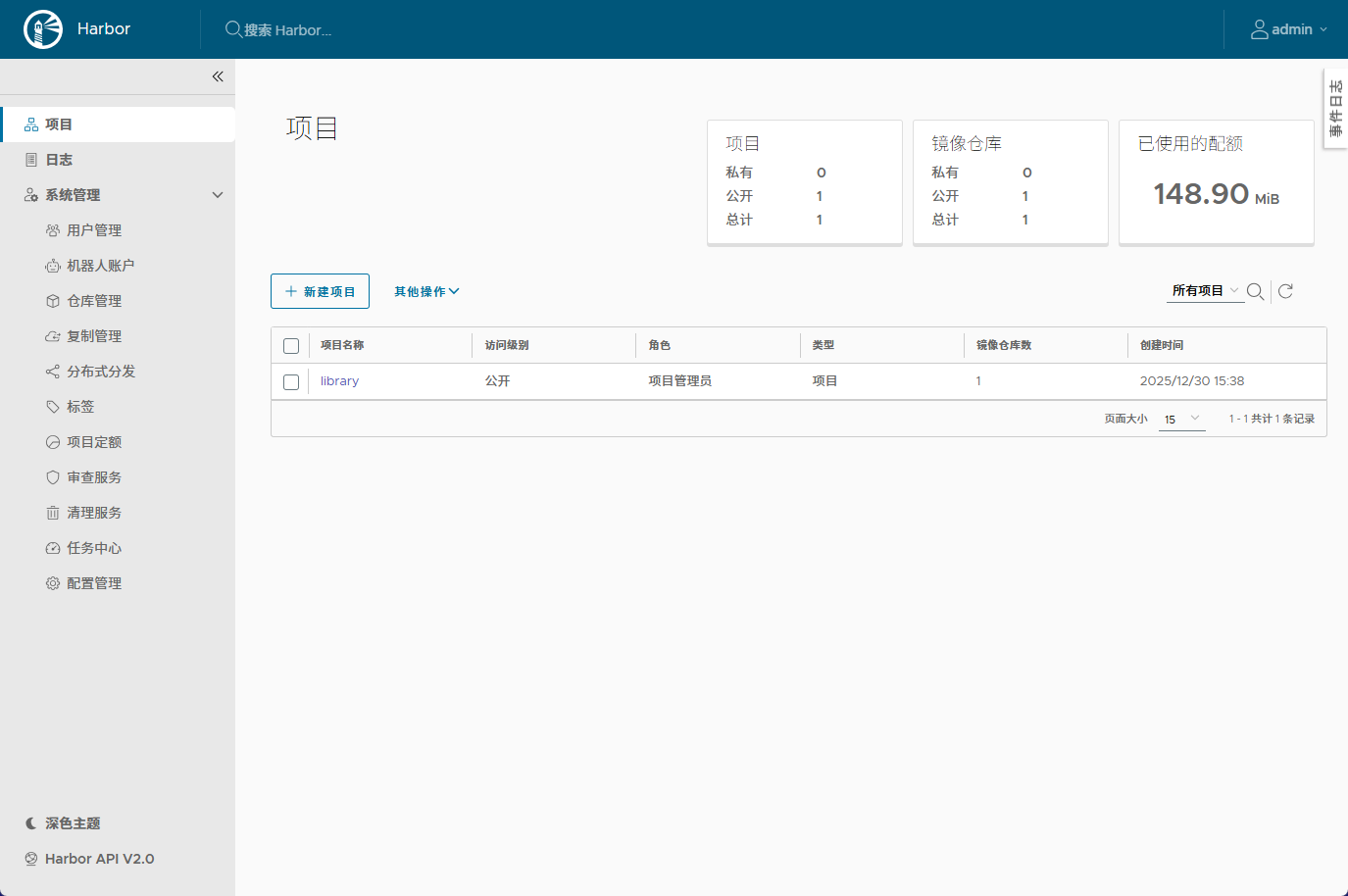
harbor docker-compose down默认账号密码
admin
Harbor12345
docker主机添加Harbor仓库
服务器2
添加并重启docker
/etc/docker/daemon.json
{
        "registry-mirrors": [
                "https://docker.1ms.run"
        ],
        "insecure-registries" : ["reg.90apt.com"]
}

systemctl restart docker
查看docker配置是否成功
docker info登录harbor
docker login reg.90apt.com运行一个uptime-kuma
docker run -d --restart=always -p 3001:3001 -v uptime-kuma:/app/data --name uptime-kuma louislam/uptime-kuma:1修改镜像tag
docker tag louislam/uptime-kuma:1 reg.90apt.com/library/uptime-kuma:1推送
docker push reg.90apt.com/library/uptime-kuma:1拉取镜像
docker pull reg.90apt.com/library/uptime-kuma:1K8S使用自建镜像仓库
服务器集群1
K8S官方教程,使用命令行方式
https://kubernetes.io/zh-cn/docs/tasks/configure-pod-container/pull-image-private-registry/
使用命令行创建Secret
kubectl create secret docker-registry 90apt \
  --docker-server=reg.90apt.com \
  --docker-username=admin \
  --docker-password=Harbor12345 \
  --docker-email=<你的邮箱地址,此项可忽略>
检查 Secret 90apt
kubectl get secret 90apt --output=yaml创建一个使用Secret的Pod
my-private-reg-pod.yaml
apiVersion: v1
kind: Pod
metadata:
  name: private-reg
  labels:
    app: private-reg
spec:
  containers:
  - name: private-reg-container
    image: reg.90apt.com/library/uptime-kuma:1
    ports:
    - containerPort: 3001
      protocol: TCP
  imagePullSecrets:
  - name: 90apt
创建一个service
90aptservice.yaml
apiVersion: v1
kind: Service
metadata:
  name: uptime-kuma-service
spec:
  type: NodePort
  selector:
    app: private-reg
  ports:
  - port: 3001          # Service内部端口
    targetPort: 3001     # Pod容器端口
    nodePort: 30010      # 节点上的端口(必须在30000-32767范围内)
运行并查看
kubectl apply -f my-private-reg-pod.yaml
kubectl apply -f 90aptservice.yaml
查看运行状态
kubectl get pod private-reg

NAME          READY   STATUS    RESTARTS   AGE
private-reg   1/1     Running   0          174m
查看serveices端口映射情况
kubectl get services

NAME                  TYPE        CLUSTER-IP       EXTERNAL-IP   PORT(S)
uptime-kuma-service   NodePort    10.109.66.144    <none>        3001:30010/TCP   173m
查看详情
kubectl describe pod private-reg

Name:         private-reg
Namespace:    default
Priority:     0
Node:         testk8s-node2/192.168.4.12
Start Time:   Wed, 31 Dec 2025 12:25:51 +0800
..........
Tolerations:     node.kubernetes.io/not-ready:NoExecute op=Exists for 300s
                 node.kubernetes.io/unreachable:NoExecute op=Exists for 300s
Events:          <none>
通过K8S集群访问测试,成功
http://node-ip:30010
评论